Most people back up their data for the first time the week after they lose it. A phone falls in the sea, a laptop is stolen, a drive clicks once and goes silent, and years of photos and documents are simply gone. The frustrating part is that a reliable backup routine takes an afternoon to set up and almost no effort to maintain. It just has to be set up before it's needed.
This guide explains how to back up your data properly: the 3-2-1 rule that professionals still use, what to back up from each device, how to choose between cloud and local backups, and the one step almost everyone skips, which is checking that the backup can actually be restored.
What counts as a backup (and what doesn't)
A backup is a second copy of your data, stored somewhere that won't fail at the same time as the original. That last clause is what most "backups" miss. Files synced to a cloud drive are convenient, but if you delete a folder by mistake or a piece of malware encrypts your documents, the sync faithfully copies the damage. A second copy on a partition of the same drive fails when the drive does. An external disk that lives plugged into the laptop is stolen along with it.
Sync and backup can overlap, and many cloud services keep version histories that soften the problem. But the mental model matters: a backup is a copy you could restore from after the original is gone.
The 3-2-1 rule
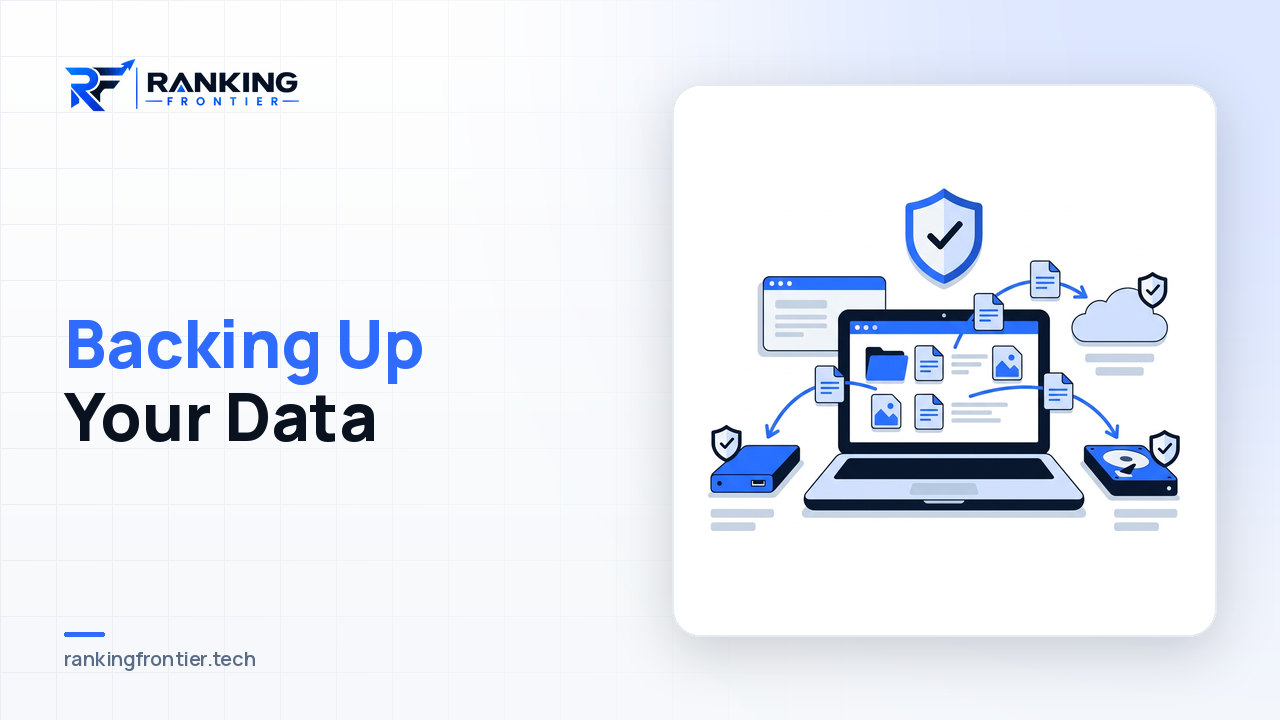
The simplest durable approach is the 3-2-1 rule: keep three copies of anything important, on two different types of storage, with one copy kept somewhere else.
- Three copies means the original plus two backups. One backup is a single point of failure.
- Two media types means, for example, your computer's internal drive plus an external drive, or an external drive plus cloud storage. Different storage fails in different ways.
- One off-site protects against the events that take out everything in one place: fire, flood, theft, a power surge. For most people, "off-site" is cloud backup, but a drive kept at a family member's house counts too.
A practical setup for a household: files live on the laptop and phone, an external drive at home takes an automatic backup, and a cloud backup service holds the off-site copy. That is three copies, two media types, one off-site, with no daily effort once configured.
What to back up from each device
Not everything needs three copies. Operating systems and applications can be reinstalled. The irreplaceable data is what you're protecting.
Phones
Photos and videos first; they are the files people grieve most. Then messages, contacts and any app data that lives only on the phone (notes, authenticator apps, voice memos). Both major phone platforms include built-in backup; make sure it is switched on, has enough storage, and has run recently. Check the date of the last successful backup rather than assuming.
Computers
Documents, photos, project files, downloads you'd miss, email archives stored locally, and browser bookmarks. Built-in tools on both major desktop systems can back up to an external drive on a schedule. Set them up once and leave the drive connected, or connect it on a fixed day each week.
Accounts and credentials
Your password manager is a backup of your logins; make sure you also keep its recovery kit somewhere safe offline. If you haven't set one up, our guide on choosing a password manager covers that. Export two-factor recovery codes when you enable them and store them with the recovery kit.
Things people forget
Photos stuck in messaging apps, files in the "Downloads" folder, documents scanned to a printer's memory, the notes app on a tablet nobody uses anymore, and anything on an old phone in a drawer. Do a one-time sweep.
Cloud backup vs local backup
Each has strengths, which is why the 3-2-1 rule uses both.
Local backups (an external drive or a home network drive) are fast, private, and cost a one-off amount. Restoring a full computer from a local drive takes an hour or two rather than days. Their weakness is location: they share your home's risks, and they need you to remember to connect them.
Cloud backups are automatic, off-site by definition, and accessible from anywhere. Their weaknesses are ongoing cost, upload speed (the first backup of a large photo library can take days on a slow connection), and dependence on a provider and an account. Use a strong unique password and two-factor authentication on any account that holds your backups; a backup someone else can log into is not secure.
Some cloud services are built for backup (they copy everything continuously and keep old versions); others are built for sync and sharing. Check which you have. Sync services are excellent for working across devices, but treat them as one of your copies, not the whole plan.
Test the restore, not just the backup
A backup you've never restored from is a hope, not a plan. Drives fail silently, backup jobs quietly stop after an update, and encrypted archives need passwords nobody wrote down. Twice a year, pick a few files at random and restore them to a different folder. Open them. Confirm they're the current versions. If you use a full-system backup, read through the restore steps once so you know what they involve before you're doing them on a borrowed laptop.
While you're at it, check the dates. A backup that last ran eight months ago protects eight-month-old data.
A simple routine that sticks
- This week: turn on phone backup and confirm it ran. Buy an external drive at least twice the size of the data you want to protect.
- This weekend: set up scheduled computer backups to the external drive. Sign up for a cloud backup service, or confirm your existing cloud storage keeps version history, and start the initial upload.
- Every month: glance at the last-backup dates on each device. Two minutes.
- Twice a year: restore a handful of files as a test. Review what new data has appeared (a new device, a new project) and make sure it's included.
- Every few years: replace the external drive before it fails. Drives are consumables.
If you run a small business, the same principles apply with higher stakes, and the routine belongs in writing. Our article on writing standard operating procedures is a good starting point for documenting who does what and when.
FAQ
Is cloud storage the same as a backup?
Not always. Sync-style cloud storage mirrors changes, including deletions and corruption, though many services keep version history for a limited period. Treat it as one copy in a 3-2-1 setup and pair it with a separate local or dedicated cloud backup.
How often should I back up?
Automatically and continuously where the tools allow it, so you never have to decide. For manual backups, weekly is a reasonable minimum, and ask yourself how much work you could bear to redo: that's your maximum gap.
Should I encrypt my backups?
Yes, especially for portable drives and cloud copies. Most backup tools offer encryption with a password you set. Store that password in your password manager and in your offline recovery kit, because an encrypted backup with a forgotten password is no backup at all.
Conclusion
Backing up your data is not a technical challenge; it is a decision to spend one afternoon before the loss rather than weeks after it. Follow the 3-2-1 rule, cover every device that holds something irreplaceable, use both local and cloud copies, and test a restore twice a year. Once it runs on its own, you will forget it is there, which is exactly what a good backup should feel like until the day it isn't.