Almost everyone knows they should use a different password for every account. Almost nobody can actually remember a hundred of them, which is how the same three passwords end up protecting email, banking and a forum signed up to a decade ago. A password manager solves that problem properly: it generates strong, unique passwords, stores them encrypted, and fills them in when needed. The harder question is which one to trust, and how to set it up so it makes you safer rather than creating a new single point of failure.
This guide explains how password managers work, what to look for when choosing one, and the setup decisions that matter most in the first week.
How a password manager actually works
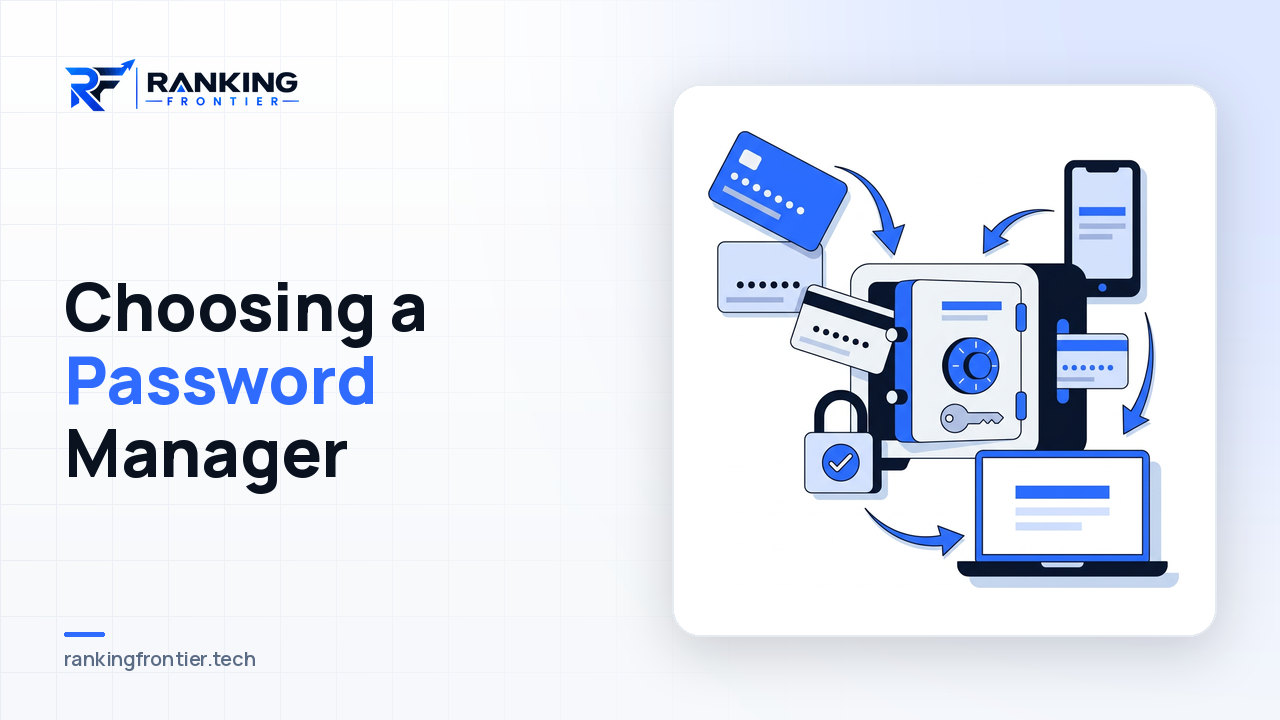
A password manager keeps your logins in an encrypted vault. You unlock it with one master password (and ideally a second factor), and it handles the rest: creating new passwords, storing them, and filling them into websites and apps through browser extensions and mobile keyboards. Reputable managers use what's usually described as zero-knowledge design: the vault is encrypted on your device before it's synced anywhere, so the company running the service cannot read your passwords even if it wanted to or was compelled to.
The practical effect is that you only need to remember one strong password, and every other account gets a long random one that you never have to type or know.
The main types
Browser and platform built-ins
Chrome, Safari, Edge and Firefox all offer password saving, and Apple and Google sync across their own devices. They're free, convenient and far better than reusing passwords. Their limits show up when you use a mix of platforms, share credentials with family or colleagues, or want to store more than website logins.
Dedicated cloud-based managers
Standalone services that work across every browser and operating system, with apps, sharing features, secure notes, and usually a free or low-cost tier. This is the right choice for most people who use more than one ecosystem.
Local or self-hosted managers
Vaults stored on your own device or server, with sync handled by you. Maximum control, more responsibility; a good fit for technical users who are comfortable managing their own backups.
What to look for when choosing one
- Encryption you don't have to take on trust. Look for published security documentation and independent audits. A company that explains exactly how the vault is protected is more credible than one that just says "bank-grade".
- Works everywhere you do. Desktop browsers, phone, tablet, and the apps you actually use. A manager that's awkward on your phone is one you'll work around.
- Two-factor support. For the vault itself, and ideally the ability to store or generate one-time codes for other accounts.
- Sharing that fits your life. Family plans, shared folders, or team features if you'll use it at work.
- Breach monitoring. Alerts when a stored password appears in a known data breach, so you know what to change.
- Export and portability. You should be able to leave with your data in a standard format. Lock-in is a warning sign.
- Emergency access. A way for a trusted person to reach your vault if something happens to you.
- Sensible pricing. Free tiers are often enough for one person on one platform; paid tiers usually add sync across devices, sharing and monitoring.
Setting it up properly
- Choose a master password you can remember and nobody can guess. A long passphrase of several unrelated words is easier to recall and stronger than a short string of symbols. Don't reuse anything you've used elsewhere.
- Turn on two-factor authentication for the vault immediately. An authenticator app or hardware key is preferable to SMS.
- Save the recovery information offline. Most managers give you a recovery key or emergency kit. Print it and store it somewhere physically safe. Losing the master password without it means losing the vault.
- Import what you already have. Most managers can import from browsers and other tools. It will be messy at first; that's fine.
- Install it everywhere. Browser extensions and mobile apps, with autofill enabled. The friction of typing passwords is what pushes people back to bad habits.
Cleaning up your passwords over time
Nobody should try to change every password in one sitting. Work through them in order of importance:
- Email first. Your email account resets everything else, so it needs a unique password and two-factor authentication before anything.
- Financial and government accounts. Banking, payments, tax, benefits.
- Anything with a saved card or personal data. Shopping accounts, subscriptions, healthcare portals.
- Everything else, as you log in. When the manager flags a reused or weak password on a site you're visiting anyway, change it then.
Most managers have a security or health report that lists reused, weak and breached passwords. Check it monthly and chip away at it.
Common worries, addressed
"Isn't putting everything in one place risky?" Concentration is a real trade-off, which is why the master password and two-factor authentication matter so much. But the alternative for most people isn't a hundred memorised passwords; it's the same few passwords everywhere, which means a single breached website compromises everything. A properly protected vault is the safer of the two realities.
"What if the company is breached?" With zero-knowledge encryption, an attacker who steals the vaults still has to break each user's master password. That's the scenario the design is built for, and it's why a strong, unique master password is not optional.
"What if I forget the master password?" That's what the recovery kit is for. Store it offline, and consider setting up emergency access for a trusted person.
FAQ
Is a free password manager good enough?
For a single person who mainly uses one platform, often yes. Free tiers from reputable providers use the same encryption as paid ones; what you typically pay for is sync across all devices, sharing, and monitoring features.
Should I let my browser save passwords as well?
Pick one system and turn the other off. Running two in parallel leads to out-of-date copies and confusion about which password is current.
Can a password manager replace two-factor authentication?
No. They protect against different things. A manager gives you strong unique passwords; two-factor authentication protects you when a password is stolen anyway. Use both, particularly on email and financial accounts.
Conclusion
A password manager is the single most practical security upgrade most people can make. Choose one that's transparent about its security, works on every device you own and lets you leave if you want to. Protect it with a strong passphrase and a second factor, store the recovery kit somewhere safe, and clean up your existing passwords starting with email. After the first week it's less effort than what you were doing before, and considerably safer.